
Placing your first order
Create your account, then book your first delivery from the counter.
Updated 29 Oct 2026
1. Create your account
- Go to the booking app and choose Sign up.
- Enter your email (twice), a username and a password. Usernames are case sensitive and can't contain spaces.
- We email you a confirmation code. Enter it and choose Confirm.
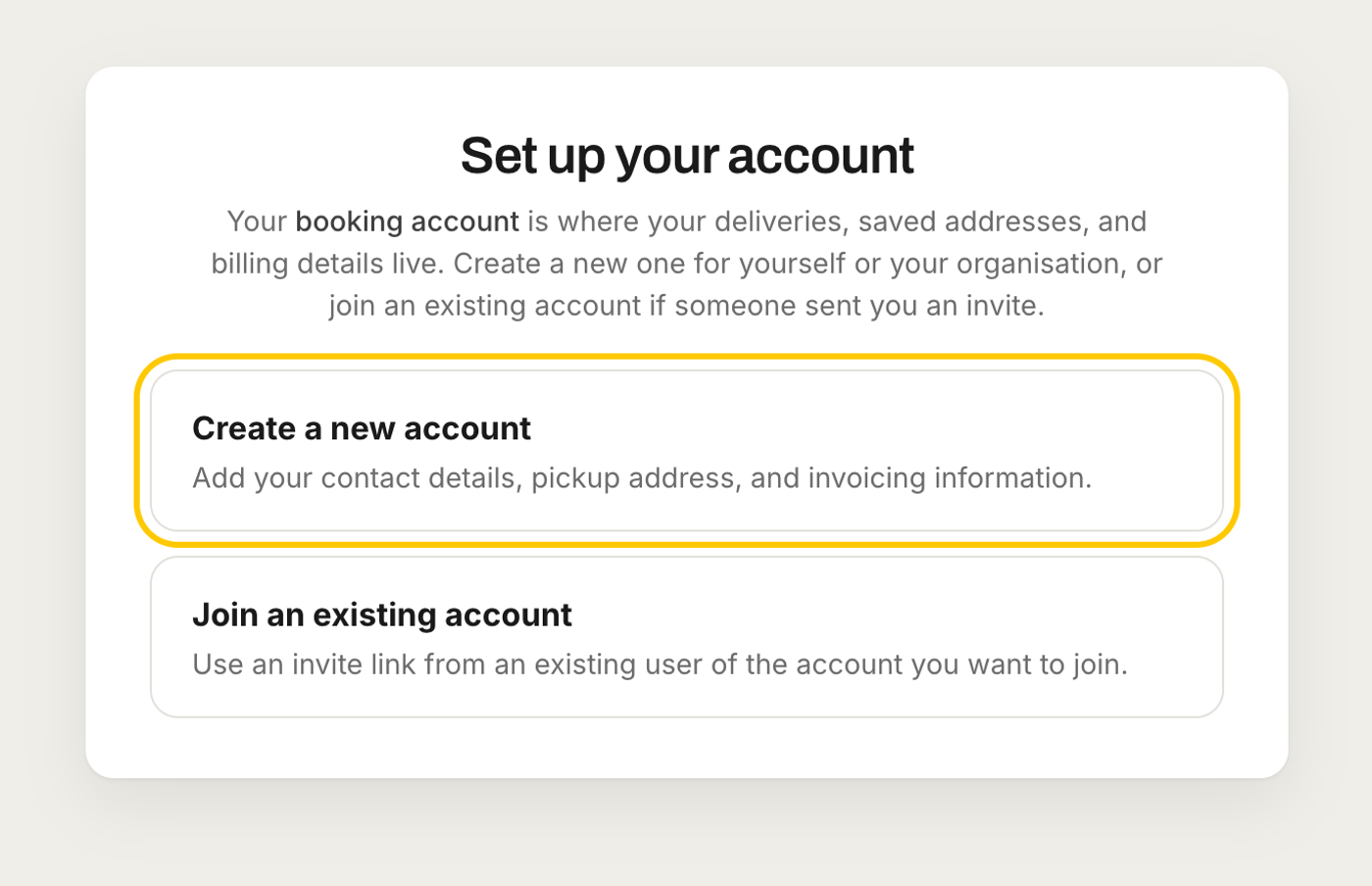
- Sign in, then choose Create a new account for your branch, or Join an existing account if a colleague has sent you an invite.
Didn't get the code? Check your junk folder, or choose Send another code. If it still hasn't arrived, chat with us and we'll sort it.
2. Set up your branch
When you create an account, you'll add:
- Company & Branch Name, your invoicing name and invoicing email
- Your branch address, contact emails and a contact number
- A purchase order prefix, if your PO numbers always start the same way (optional)
- Teammates to invite (optional, you can do this later)
Your account is then reviewed by our team. You'll see Booking Account Approval Pending until it's approved. You can't place orders until then.
3. Book the delivery
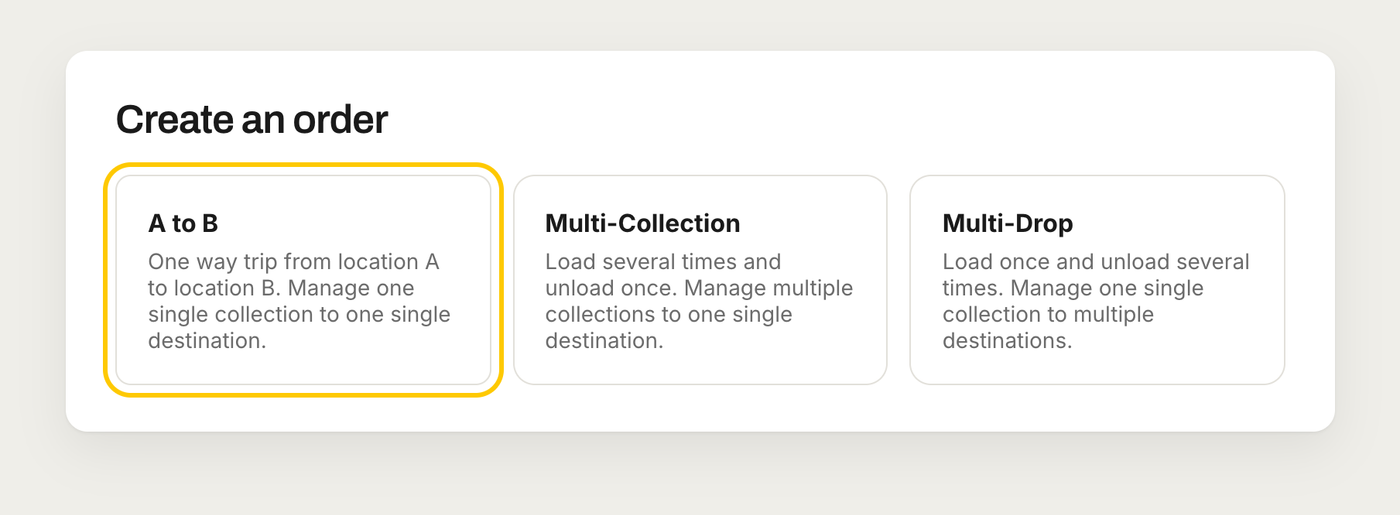
From the home screen choose Create an Order, then pick A to B for a single drop. (Multi-Drop and Multi-Collection are there for several stops.)
- Pick Up. Switch on Use default pick up address for your branch, or search for another address. Add a Driver Collection Reference so the counter knows which order to hand over.
- Drop Off. The customer's company name and address, plus a site contact name and number. Send site contact SMS updates? is on by default, so they'll get texts with a live tracking link.
- Item Details. Describe what's going (e.g. "10 bags of plaster"), with the length, width, height, total weight and the value of the goods. The value is needed to insure them.
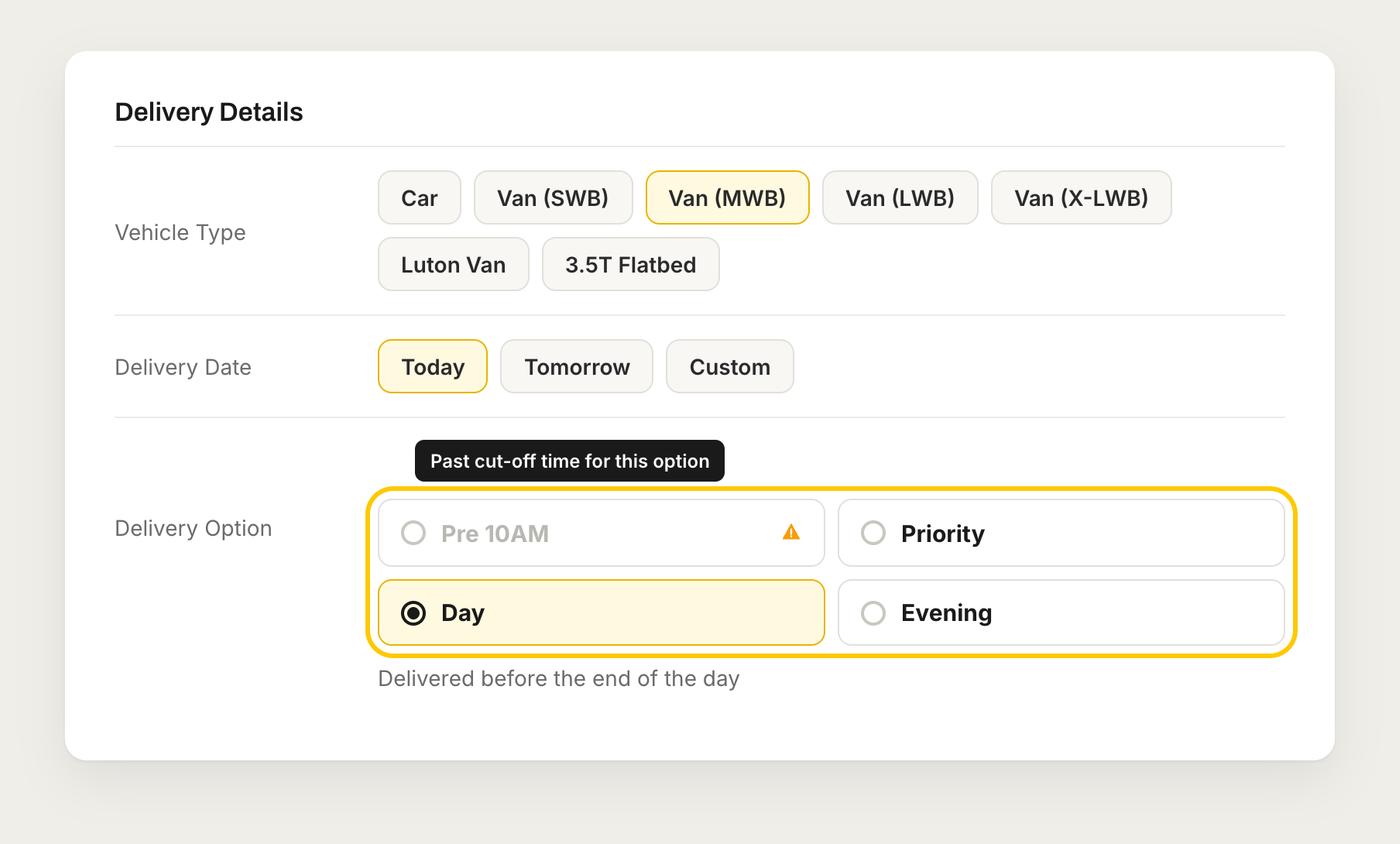
- Delivery Details. Pick the vehicle, the date (Today, Tomorrow or another day) and the delivery option:
- Priority: delivered as soon as possible
- Day: delivered before the end of the day
- Evening: delivered after 4pm and before 8pm
- Pre 10AM: delivered before 10am, booked the day before
Options that have passed their cut-off are greyed out. Hover over one to see why. On weekdays, book Day by 1pm, Priority by 3pm and Evening by 4pm. On Saturdays only Priority runs, booked by 12pm, and Saturday charges apply.
4. Add your booking details and confirm
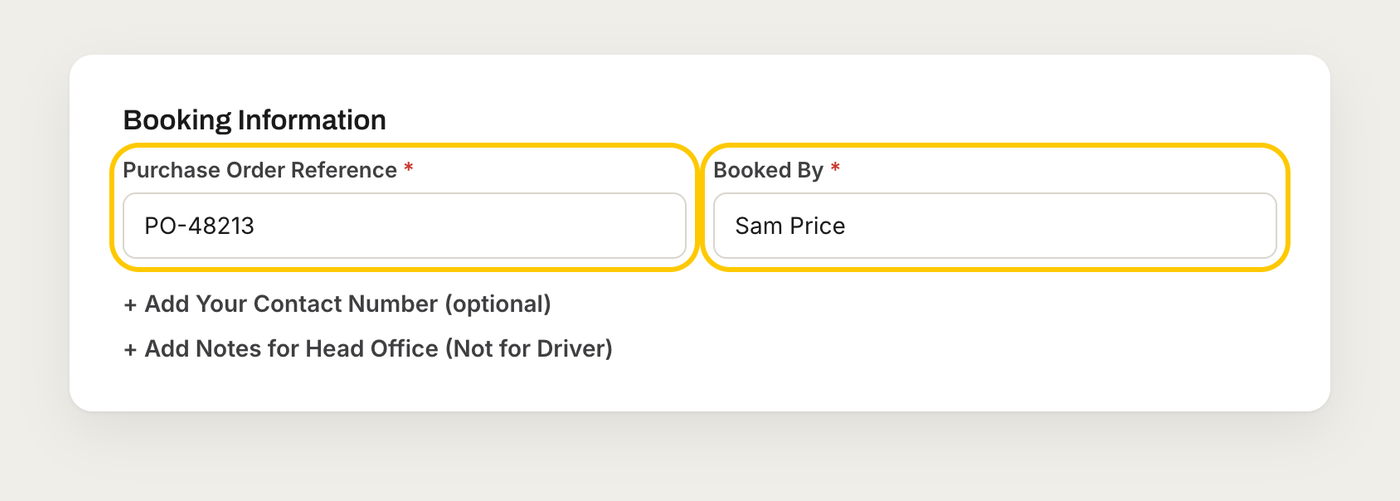
- Purchase Order Reference and Booked By are required on every order.
- Driver Instructions on each stop are what the driver sees.
- Notes for Head Office are for your records only. The driver doesn't see them.
The price shows before you book: delivery fee, service charge and total, all excluding VAT. Choose Preview Order, check the details, then Confirm Order.
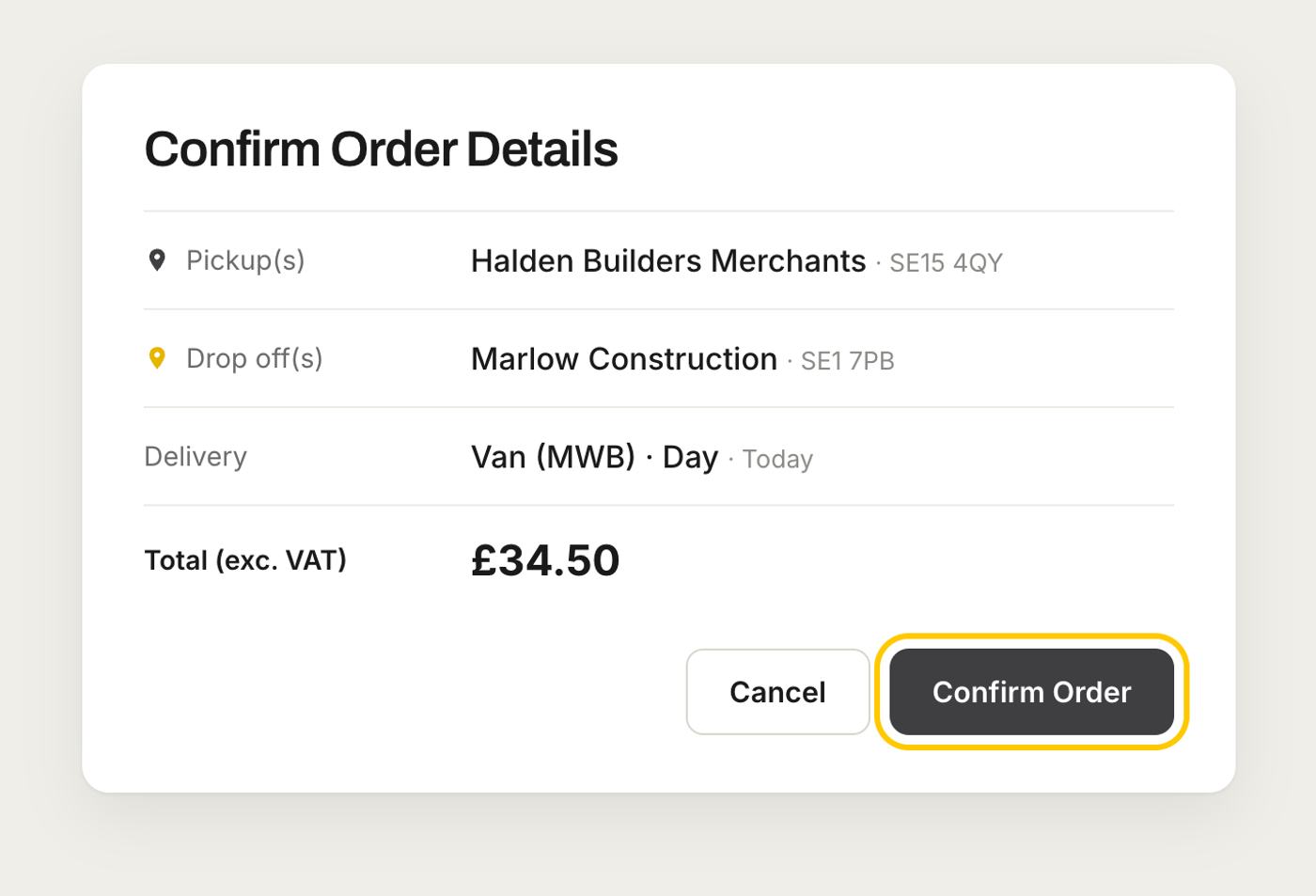
If your account needs bookings approved, your approvers get an email and the delivery is held until one of them approves it.